

TL;DR: Build one employee list inside your HR team in Teams, rename the Title column, and add validation so a half-finished record cannot be saved at all.
An employee master list is one record per person that every department reads from and only one department writes to. Most construction companies do not have one. They have three things that each think they are one, and the three disagree.
Here is the test. An employee changes their phone number today. How many places in your company would you have to go to change it — and are you sure you would get them all? Count them honestly. Most people who have run a small GC’s office land somewhere between three and six, and nobody is confident about the last two.
This guide builds the list that replaces all of them, inside the Microsoft Teams you are already paying for. No new software, nothing to buy, and no migration project.
The Three Lists That Disagree With Each Other
In every construction company I have worked for, the people data lived in three places. A spreadsheet somebody owns, and that somebody is the only one who knows which tab is current. A folder in accounting with the paperwork in it. And whatever the superintendents carry in their heads.
None of those three is wrong on purpose. They exist because each one answered a real question for the person who built it, and nobody ever had the authority to say which one wins. So the spreadsheet gets a new column, accounting gets a new folder, and the supers keep their own notes, because the supers learned years ago that the spreadsheet is a week behind.
The cost does not show up on a P&L. It shows up as a certification that lapsed because the renewal date lived in a tab nobody opened, as a paycheck mailed to an old address, as an estimator who staffs a job around a guy who left in March. Each one is small. Across a crew, across a year, they add up to real money and at least one genuinely bad afternoon.
A list beats a spreadsheet for exactly one reason, and it is not features: a list can refuse a bad entry. A spreadsheet will let you type anything into any cell and will never tell you. That single difference is what turns a file into a system.
Where the List Has to Live
Put the list inside the department that owns the data. Not on a shared drive, not in a personal OneDrive, and not in a company-wide team where everyone can edit it.
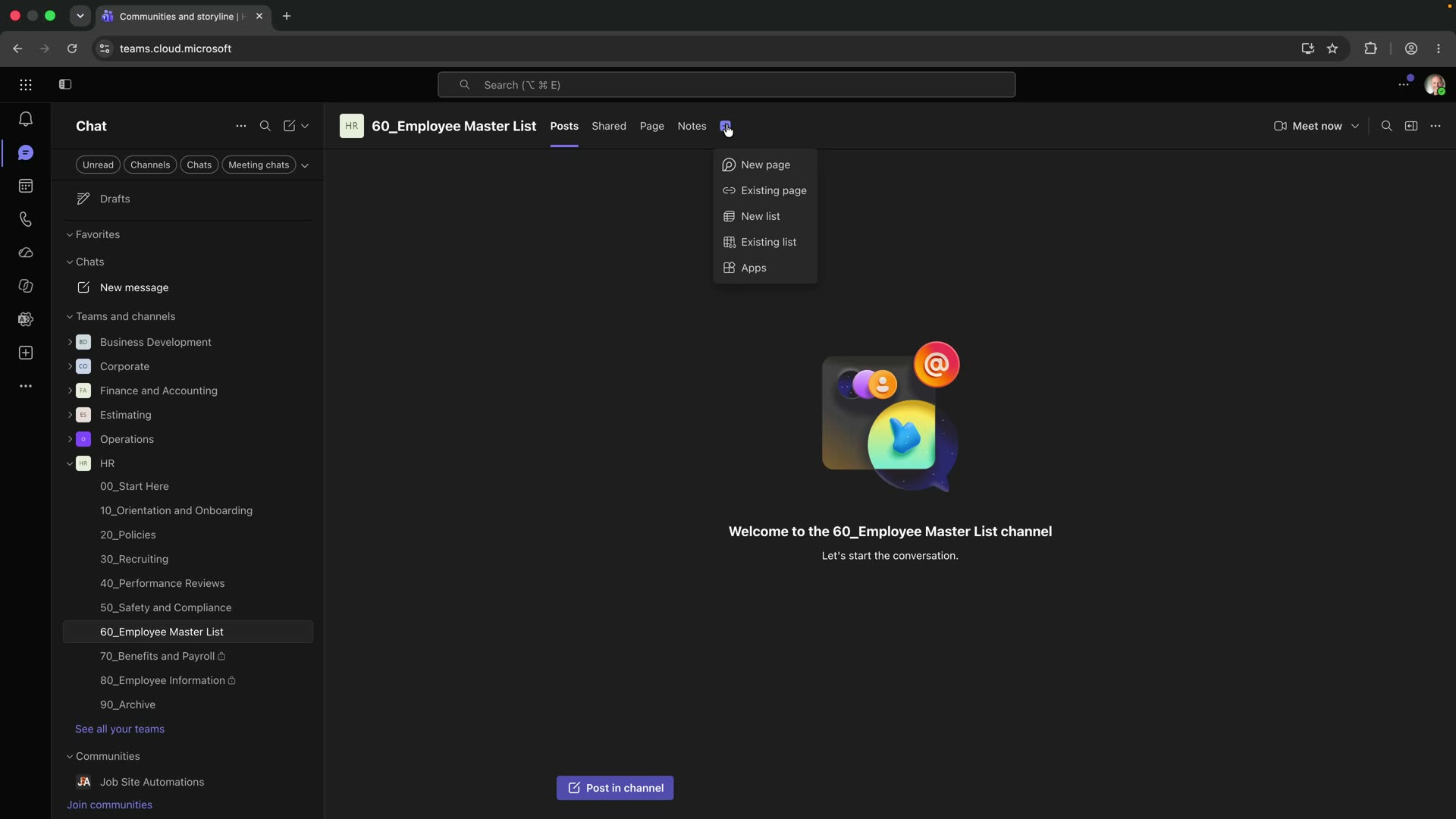
In Teams, open your HR team, go to the channel where HR actually works, click the plus sign to add a tab, and pick Lists. If Lists is not in the tab picker, go to Apps, search for it, and add it. Then create a new list — from blank. Not from a template, not from an import, because every template ships columns you will spend twenty minutes deleting and a shape you did not choose. Name it Employee Master List.
Two things happen the moment you do it that way. Everyone in HR already has access, because they already have the team, so there is no permission to grant and no link to send. And nobody has to be told where it is, because it is in the room where the work already happens. Microsoft’s own walkthrough of creating a list covers the mechanics; the part worth deciding on purpose is the location.
If your Teams structure is still one giant team with forty channels in it, fix that first — the list has nowhere sensible to live until you do. That is a different build, and it is the one in Microsoft Teams for Construction.
The Column You Are Not Allowed to Delete
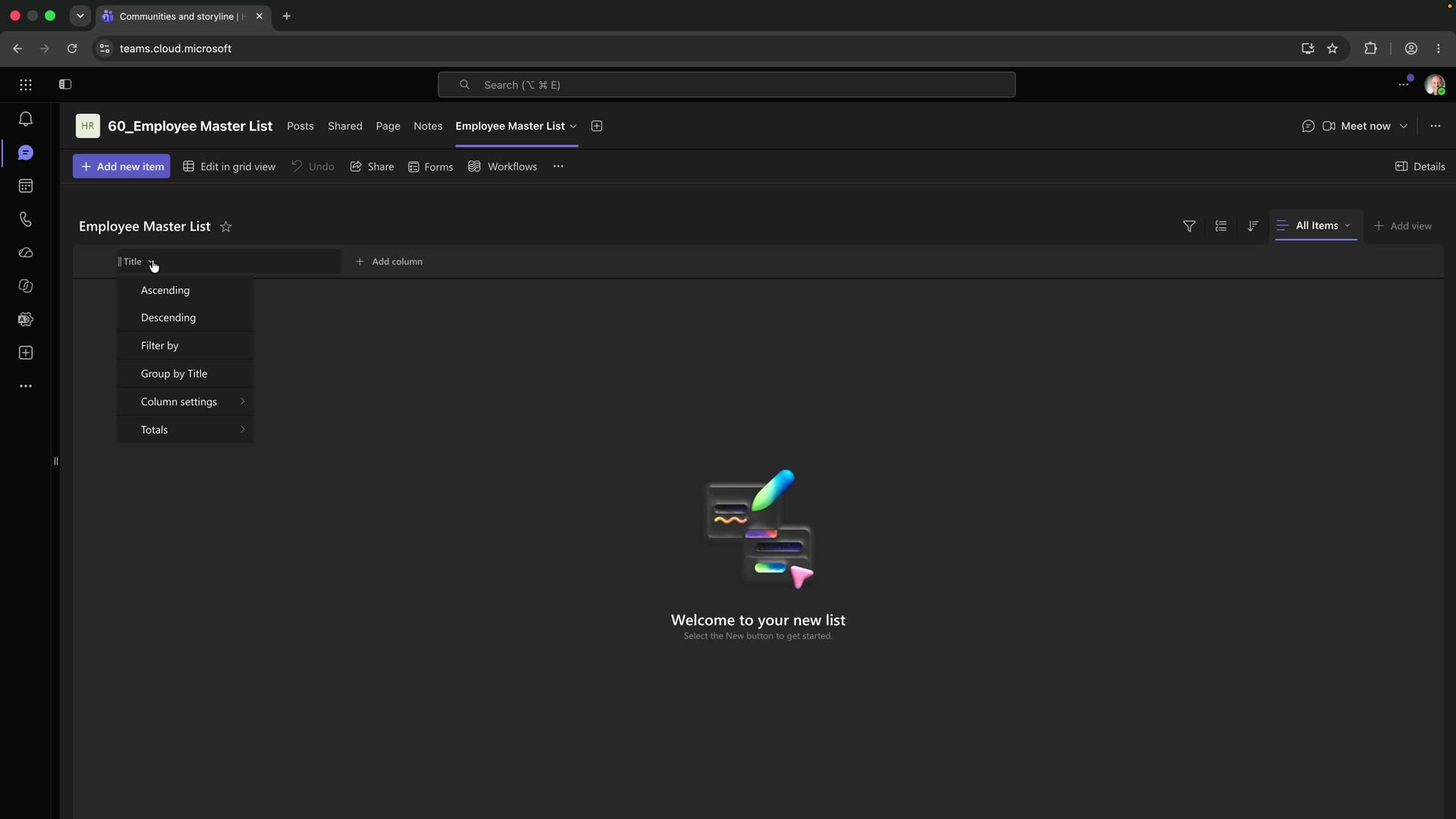
Every new list starts with a column called Title, and you cannot delete it. People waste twenty minutes trying, give up, build a second name column beside it, and end up with two name fields that will diverge within a month.
Rename it. Title becomes Employee Name, single line of text, required. That is the whole fix, and it takes four seconds once you stop fighting it.
This is the first of several places in this build where the correct move is to accept what Microsoft hands you and rename it rather than work around it. A workaround is a thing you will have to explain to every new hire for as long as the list exists.
Columns That Match Your Org Chart, Not a Template
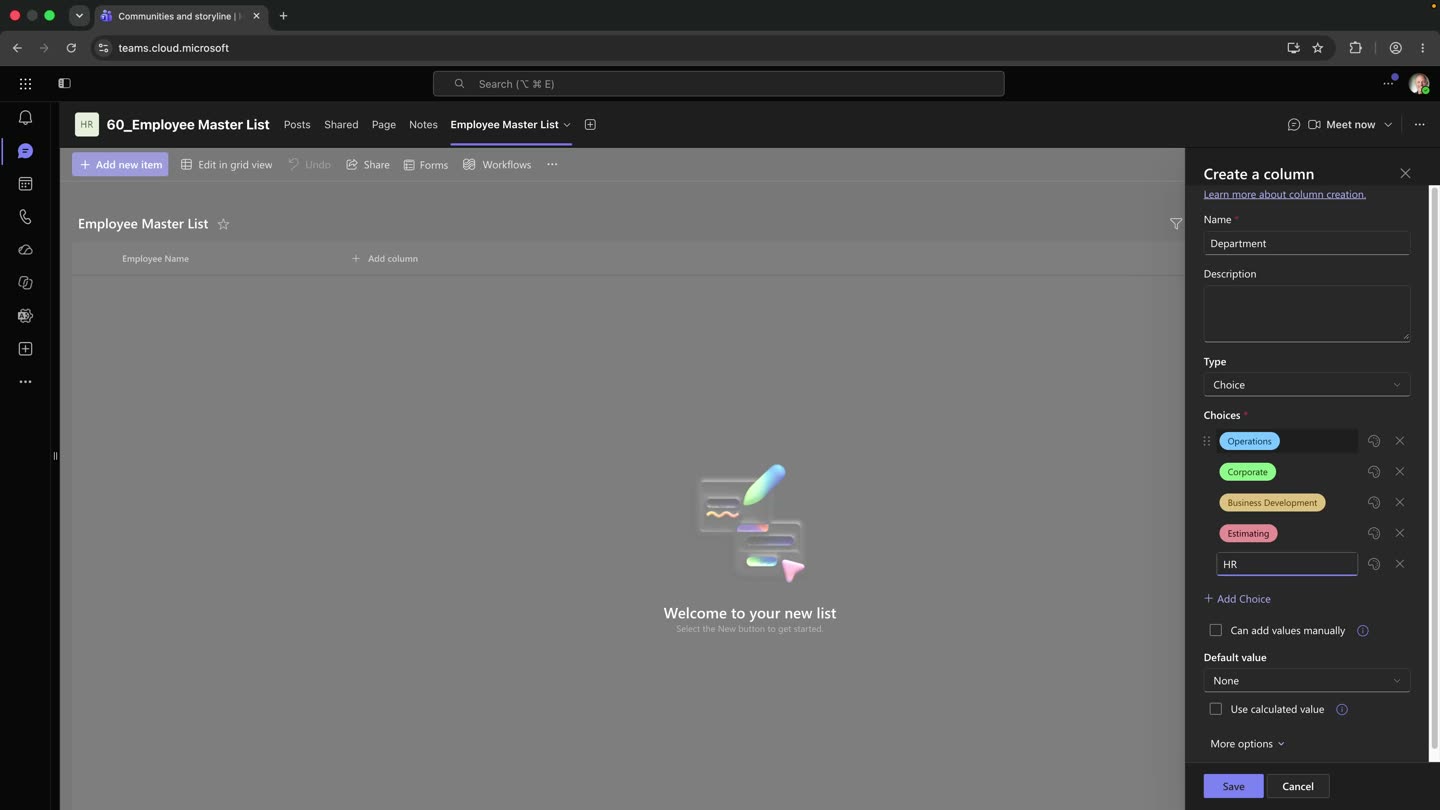
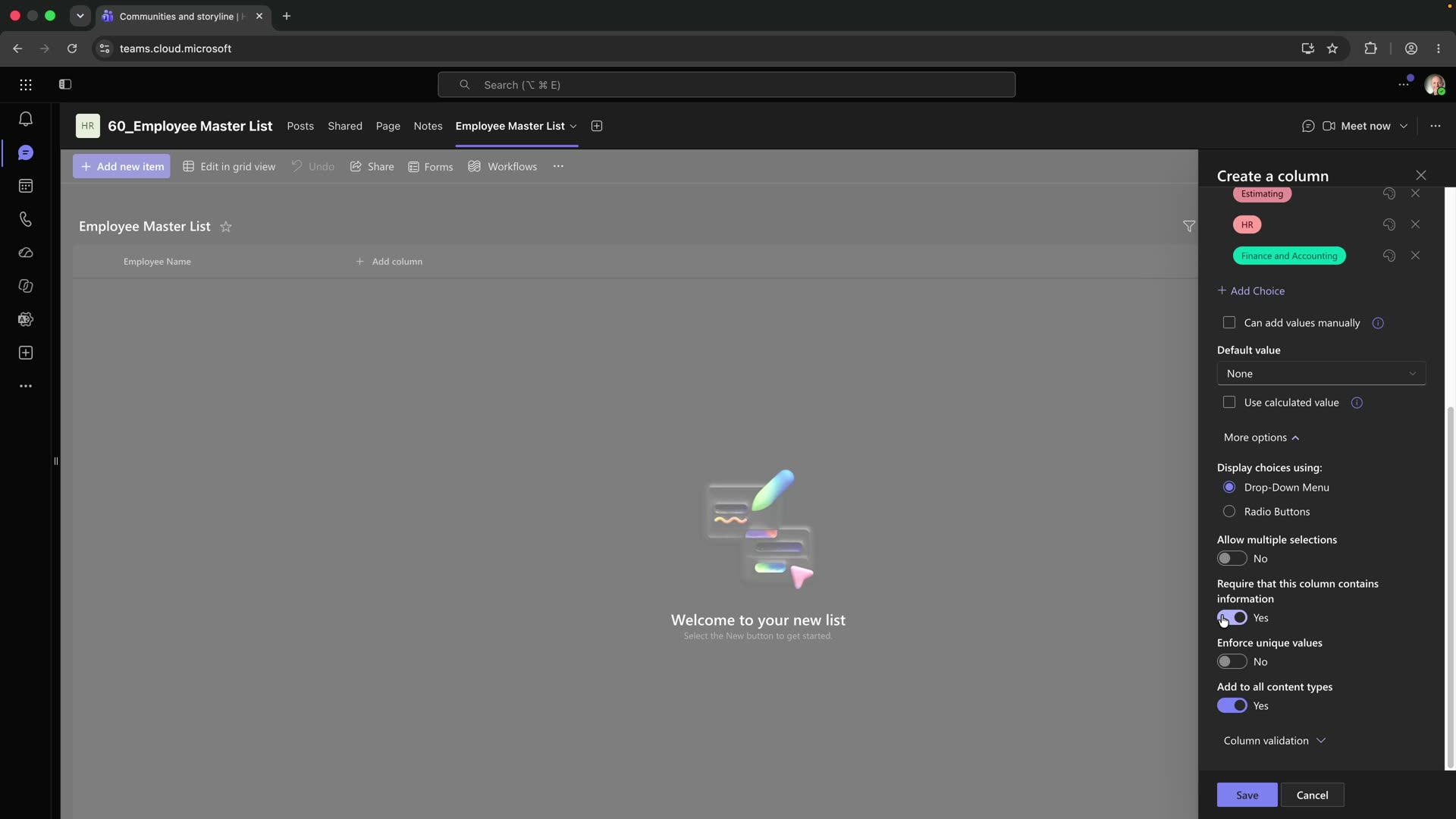
Now add the columns that describe how your company is actually organized. Choice columns, not text, for anything with a fixed set of answers — because a choice column is a decision you make once, and a text column is a decision every person makes again every time they type.
Department is a choice column: Operations, Corporate, Business Development, Estimating, HR. Role is a choice column too: Owner, Principal, Superintendent, Carpenter, Project Engineer — whatever your company actually has, not a generic job-title list. Active is a yes/no, because the question “does this person still work here” has exactly two answers and a text field will eventually contain the word “sort of”.
Then the dates that tell the story: hire date, and whatever renewal dates your trade actually tracks. A date column sorts and filters; a date typed into a text column does neither, and you will not find out until the day you need to filter it.
One rule holds all of this together: a column exists to be filtered on, or it does not exist. If you cannot name the question a column answers, it is a note, and notes belong in one notes field at the end rather than scattered across six columns nobody maintains.
Guardrails: Make the Wrong Entry Impossible
This is the part that makes it a system, and it is the part almost nobody does.
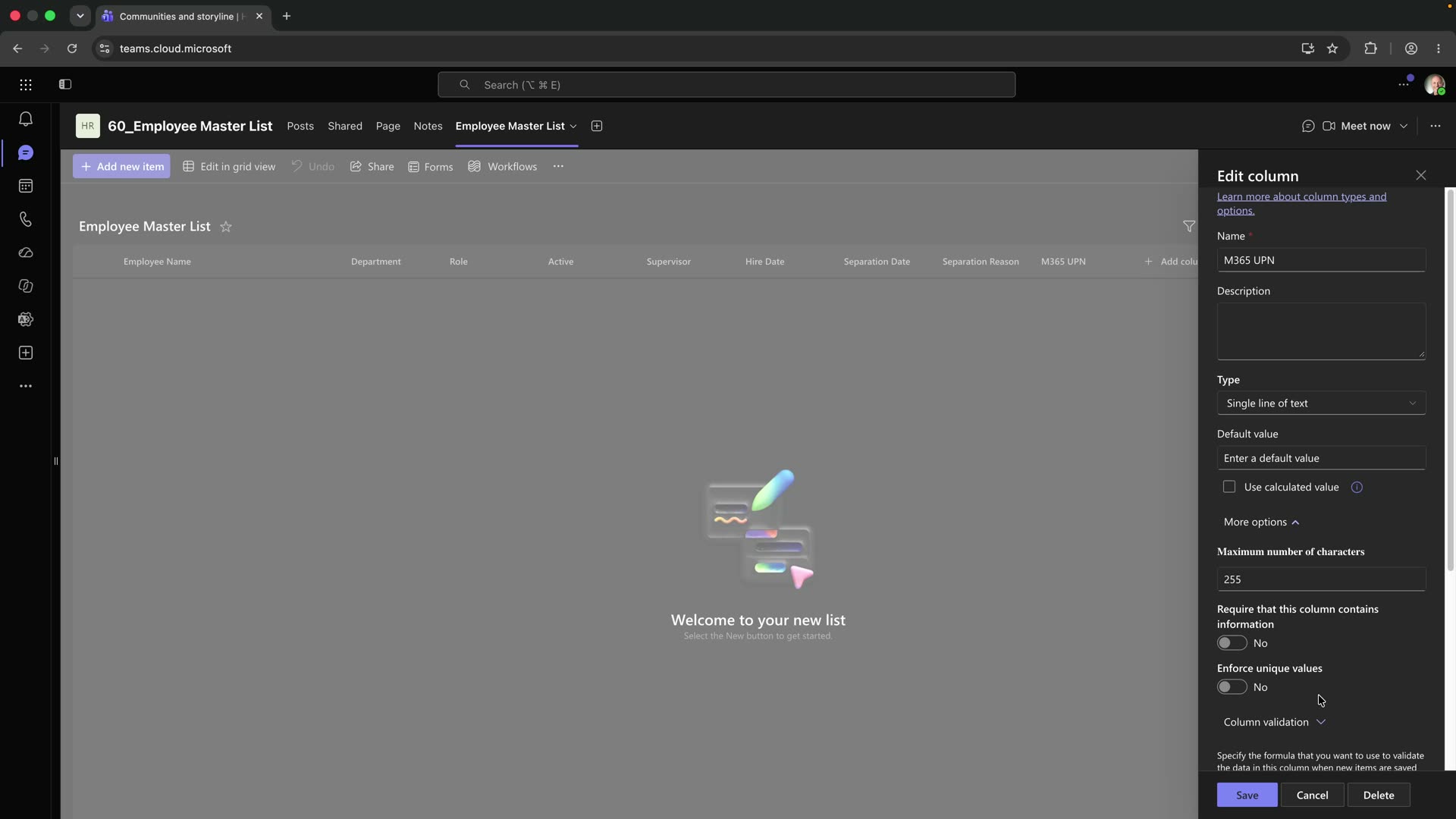
A list can validate what gets typed into it. Open the column settings, expand Column Validation, and give it a formula plus a user message. The formula decides whether the entry is allowed; the message is what the person sees when it is not. Microsoft documents the formula syntax in examples of common formulas in lists, and the limitation worth knowing up front is that a formula can only see its own row — it cannot reach another row or another list.
Write the user message as an instruction, not as an error. “Enter a mobile number as 10 digits, no dashes” tells someone what to do. “Invalid input” tells them that a computer is unhappy, which they already knew.
Two or three validated columns is usually enough. The goal is not to catch every possible mistake; it is to make the specific mistakes that have actually bitten you impossible to repeat. Every validation rule you add should be traceable to a real afternoon you lost.
Four Views, One List
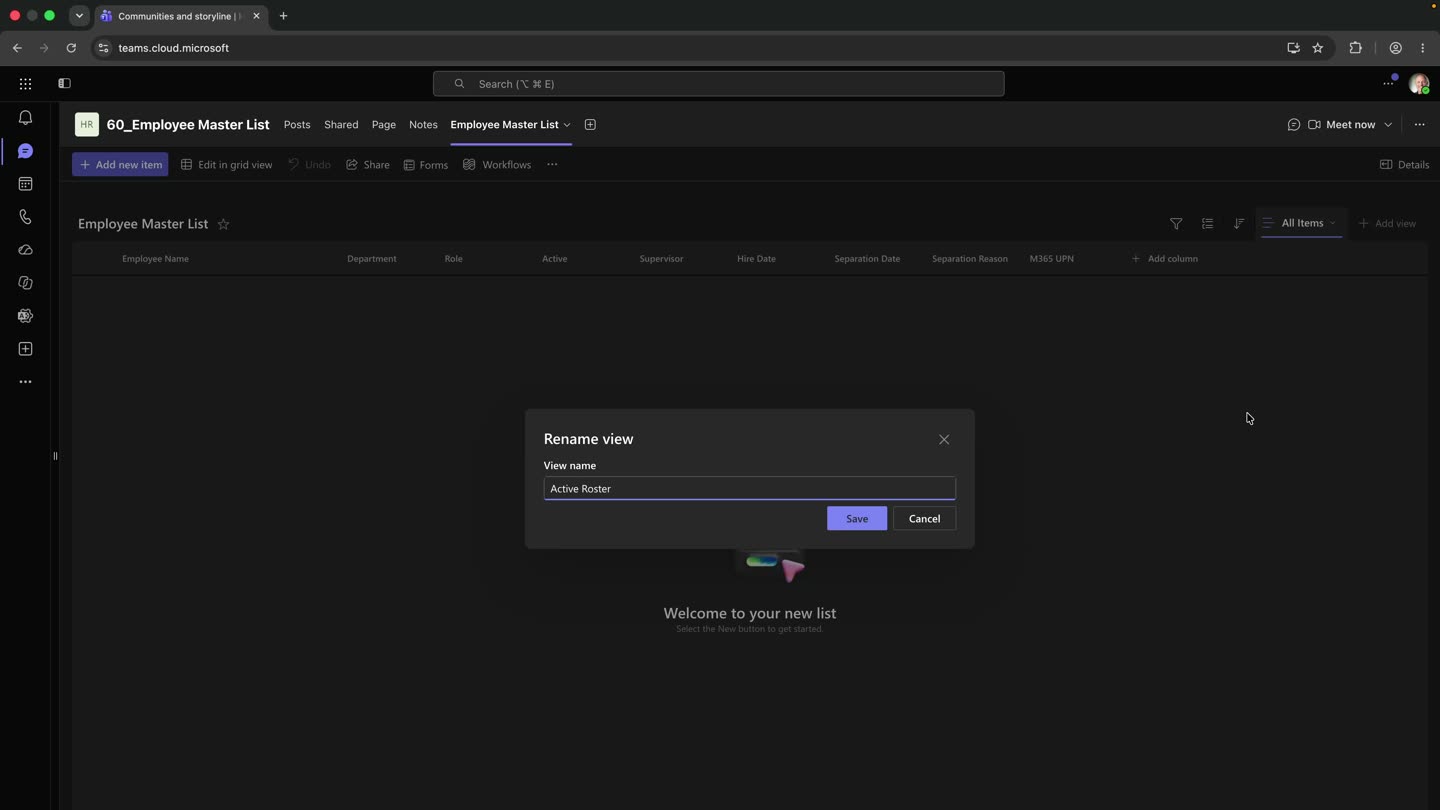
One list, filtered four ways, answers four different questions without anyone duplicating a row.
A view is a saved set of filters, sorts, groupings and visible columns. You create it from the column headers and then save it under a name. Active Roster filters to Active = Yes. A department view groups by Department. A certifications view shows only the renewal dates, sorted soonest first, so the thing about to lapse is at the top. Microsoft’s walkthrough of creating or changing a list view covers the controls.
The point is the arithmetic. Four views on one list means one record per person and four answers. Four spreadsheets means four records per person and four answers that disagree by Thursday.
Employee Master List vs. the Alternatives
| Criteria | Employee master list in Teams | Shared spreadsheet | HR platform | Paper and memory |
|---|---|---|---|---|
| Can refuse a bad entry | Yes — column validation | No, and never tells you | Yes | No |
| Already in your stack | Yes, with Microsoft 365 | Usually | No — separate purchase | Yes |
| One record per person | Yes | In theory | Yes | No |
| Who can see it | The department that owns it | Whoever has the link | Per licence | Whoever is in the room |
| Cost | Included | Included, paid in rework | Per seat, per month | Free, paid in mistakes |
| Time to first useful version | Under an hour | Minutes, then months of drift | Weeks of onboarding | None |
Frequently Asked Questions
Do I need a SharePoint licence for this? If you have Microsoft 365 with Teams, you have Lists. A list created in a Teams channel lives in that team’s SharePoint site, which is created with the team.
Can the field see this on a phone? Yes — in the Teams mobile app, as a tab in the channel. It is the same list and the same views.
What if two people edit the same row? Lists handles concurrent edits at the item level rather than the file level, which is the other reason this beats a shared spreadsheet that one person has open.
Should every employee be able to see it? No. Put it in the HR team and let HR own writing to it. If another department needs a slice, give them a view of the data they need rather than access to the whole list.
Can I import my existing spreadsheet? You can, and I would not start there. Build the columns deliberately first, then paste the data in. Importing first means inheriting whatever shape the spreadsheet drifted into.
How is this different from a template? A template is somebody else’s org chart. Your choice values should read like your company, because the people typing into it are the ones who have to recognize the options.
Build It With Me
I build these on camera, in the Microsoft 365 tenant I run operations in, mistakes included.
If you would rather have the column-by-column spec on paper before you touch anything, the Employee Master Blueprint is free.
And if hiring is where your real leak is rather than the roster, the Hiring Leak checklist is a shorter read.
Attribution
Written by JD Steinberger — 30+ years in commercial construction, a decade with a hammer, two decades running jobs as a superintendent, and currently VP of Operations for a general contractor. Every build on this site is one I run in production before I publish it.
Microsoft documentation cited above: create a list, examples of common formulas in lists, create or change the view of a list.
Leave a Reply