
Microsoft Teams for Construction: 7 Proven Steps 4U

TL;DR: Microsoft Teams for construction works when you build one team per department, number every channel, and dodge the two settings you can’t undo.
Microsoft Teams for construction works best when you treat it like a jobsite, not an office chat app — one clear structure, built once, that still makes sense a year and fifty jobs from now. Most small GCs open Teams, make one giant team for the whole company, and dump forty random channels into it. Six months later nobody can find the current set of drawings, and the “system” is a junk drawer with a search bar.
It doesn’t have to go that way. The setup that holds up is boring and repeatable: one team per department, a numbered channel system, and the right people in charge of each room. Do that, and Teams stops being another place to lose things and starts being where the whole operation lives.
This guide walks the exact structure used to run the back office of a construction company — plus the two Teams settings that lock the second you click Create, so you build it right the first time instead of rebuilding it later.
Why Most Construction Teams Setups Turn Into a Junk Drawer
The problem isn’t Microsoft Teams. It’s that Teams gives you infinite freedom and zero opinion about how a contractor should use it. So the field guys, the PMs, and the office each make their own channels, name them whatever, and within a quarter you’ve got three channels that all mean “current job” and none that anyone trusts.
That costs real money. A super who can’t find the approved submittal reissues it. A PM who can’t tell which channel is live posts in the dead one. The daily report lands somewhere nobody checks. None of it shows up on a P&L, but it’s an hour here and an hour there across a crew, across a year — a full salary’s worth of time spent looking for things that should have had one obvious home.
The fix is structure you decide once and never renegotiate. When every department is built the same way and every channel is numbered, a new hire learns the whole company in five minutes, because the shape never changes. That’s what a Microsoft Teams for construction setup is really about — not the software, but the structure you put on top of it.
How to Build Microsoft Teams for Construction, Department by Department
The core idea: one Team per department, not one Team for the whole company. Operations is a team. Finance is a team. HR is a team. Each one is its own room with its own people, and each one is built to the exact same template.
Step 1 — One department, one team. Create a team from scratch and name it after the department (start with Operations). Set the team type to Private — only members get in, and that alone is your privacy for almost everything inside it.
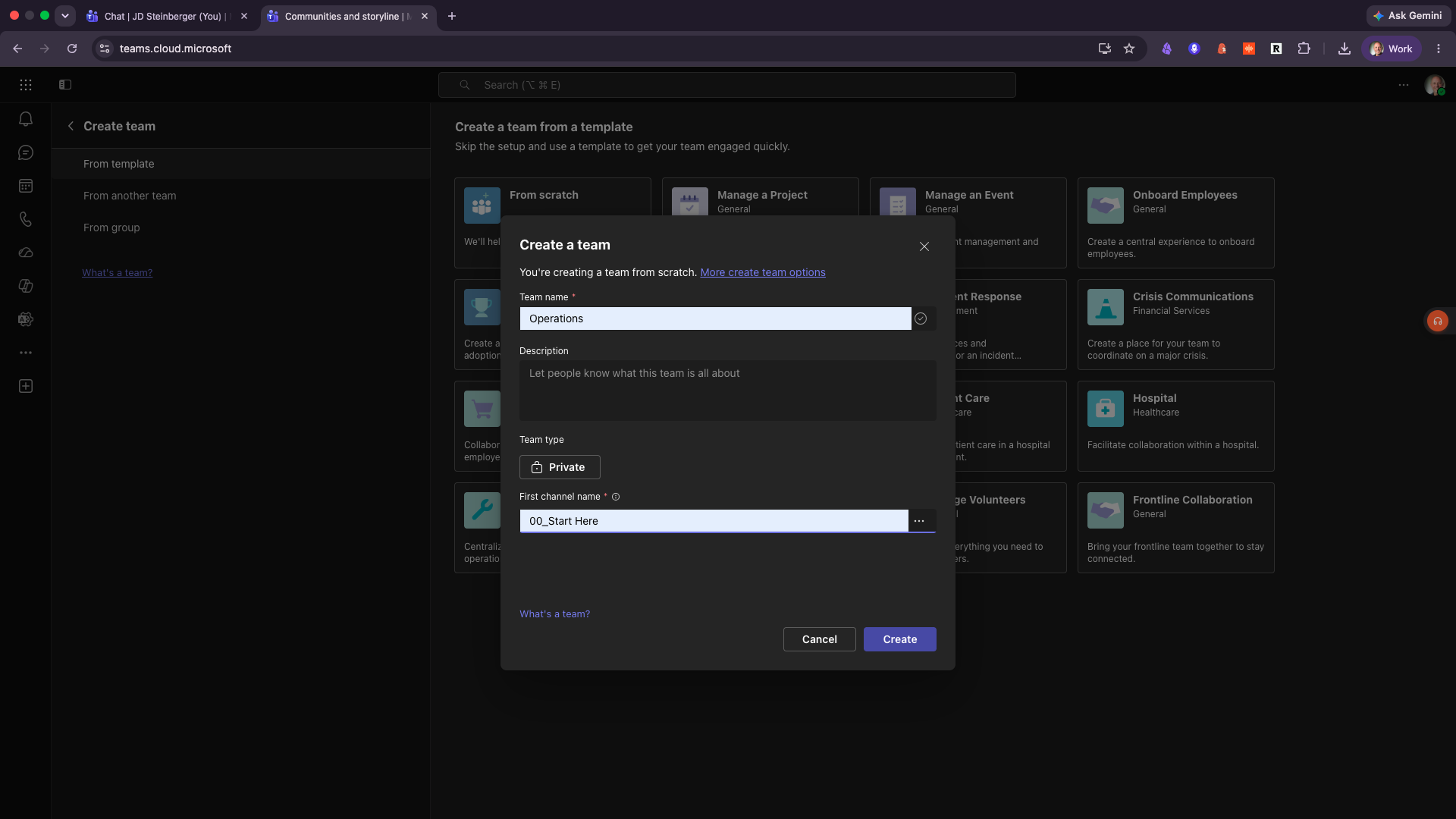
Step 2 — Name the permanent first channel on purpose. When you create a team, Teams makes you name the first channel, and whatever you type there can never be deleted or archived. Don’t leave it “General.” Name it the one channel you always want to exist: 00_Start Here — your front door, where the rules of the room live.
Step 3 — Set owners and members deliberately. Owners run the room; members work in it. Never leave a team with a single owner — if that person leaves, the room is orphaned. Two owners minimum, always.
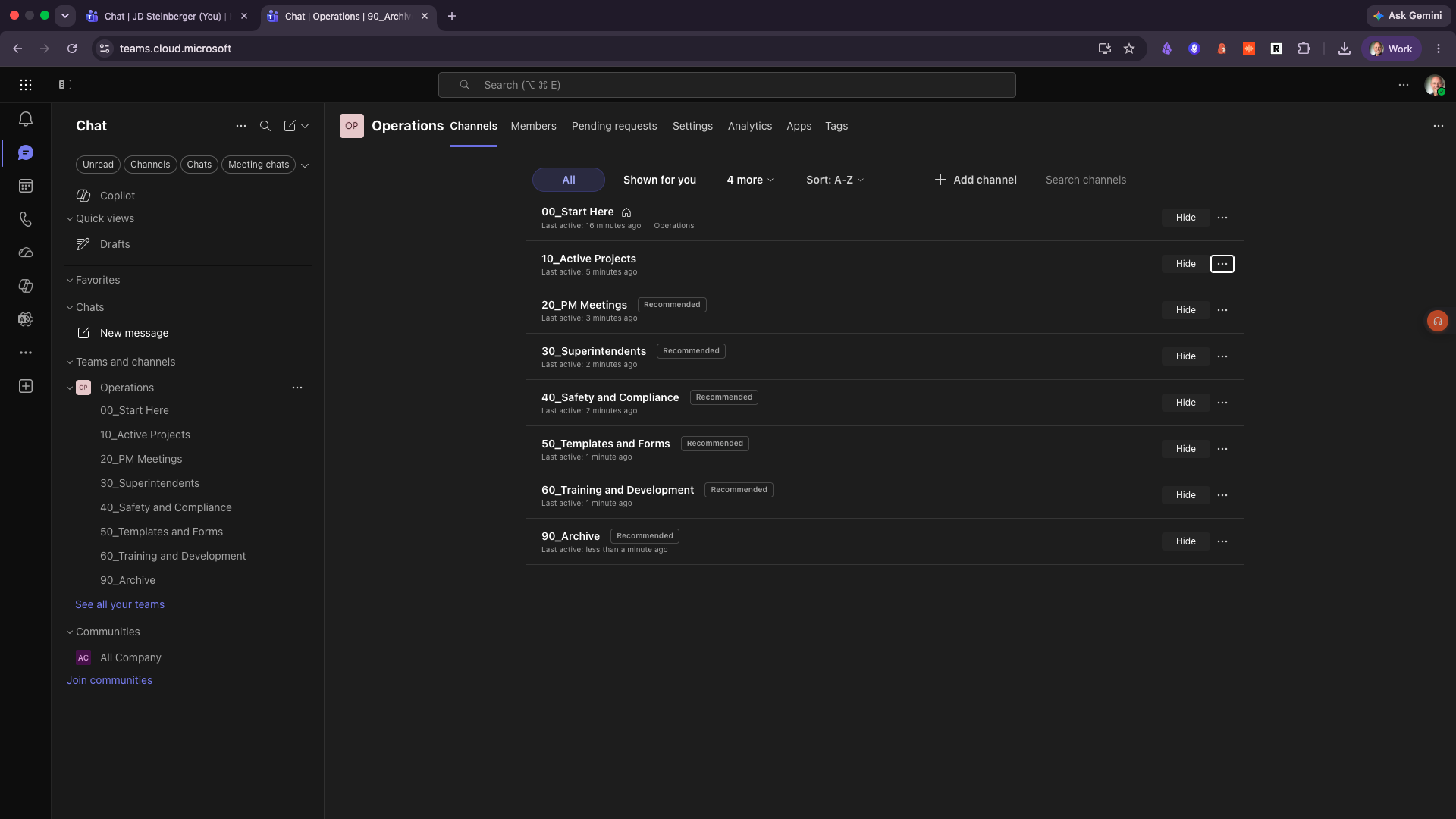
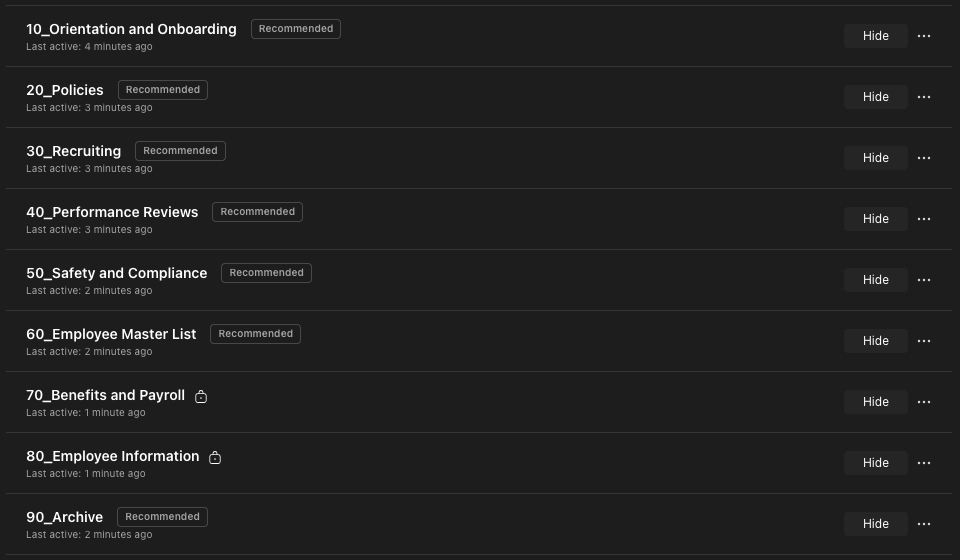
Step 4 — Number every channel on a band system. This is the whole trick. Channels get tens-block numbers: 00_Start Here (front door), 10_Active Projects, 20_PM Meetings, 30_Superintendents, 40_Safety and Compliance, on up to 90_Archive. The 00 front door and 90 archive are identical in every department. Eight channels or eighty, the filing system never changes.
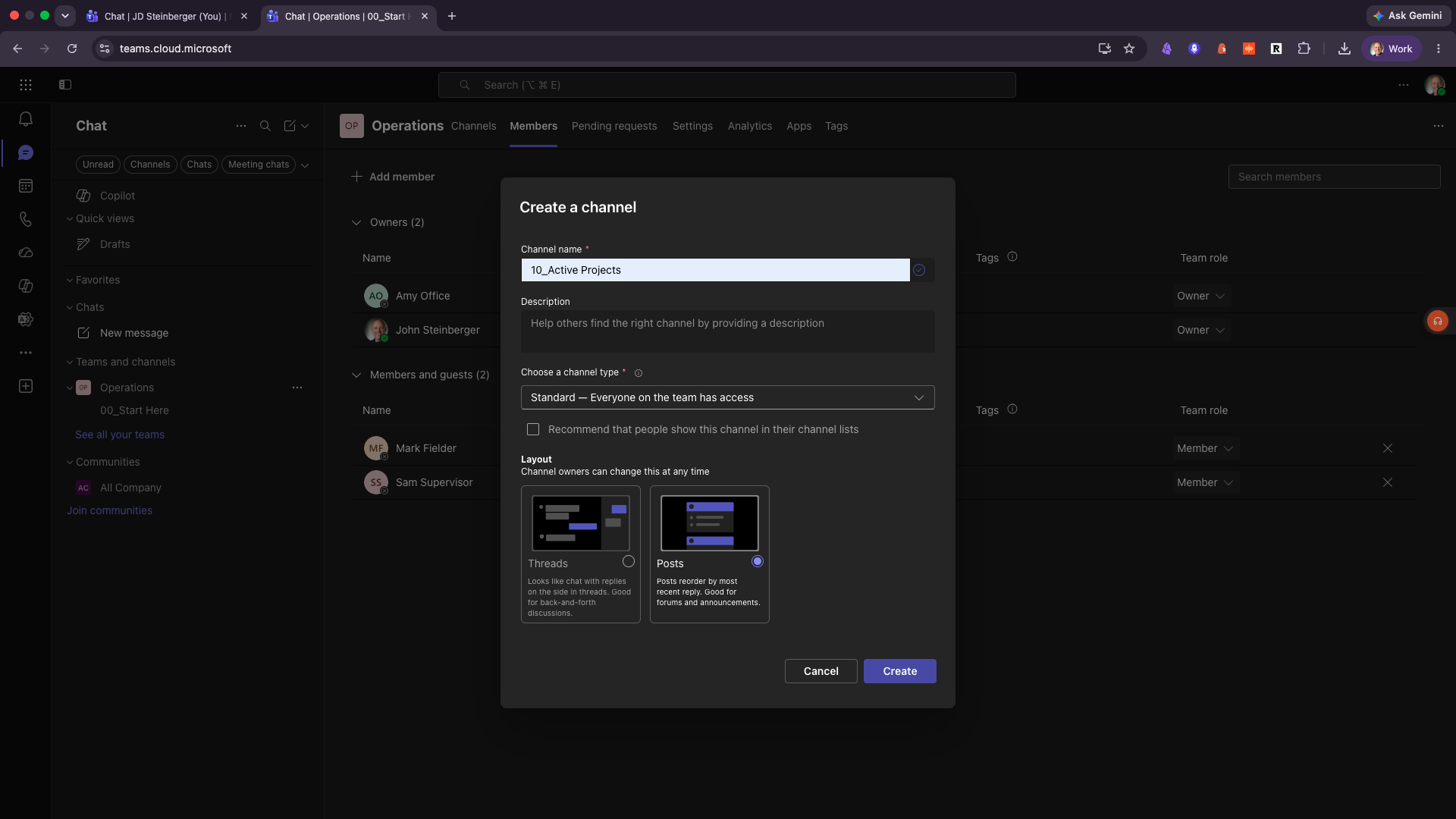
Step 5 — Switch new channels from Threads to Posts. Microsoft now defaults new channels to the Threads layout. For a construction crew that wants a running feed, switch each channel back to Posts — it reorders by most recent reply, which is how a jobsite actually reads.
Build one department this way and you’ve built all of them, because the template is the same every time. That’s the point of the band system: same front door, same archive, same shape, every department.
The Two Settings You Can’t Undo
Here’s where people wreck an otherwise clean setup. Two settings in Microsoft Teams lock permanently the moment you create a channel, and the instinct to “just fix it” is exactly what sends people back to square one. Get these two right and your Microsoft Teams for construction setup survives its first year; get them wrong and you’re rebuilding.
Can you change a channel’s type after you create it?
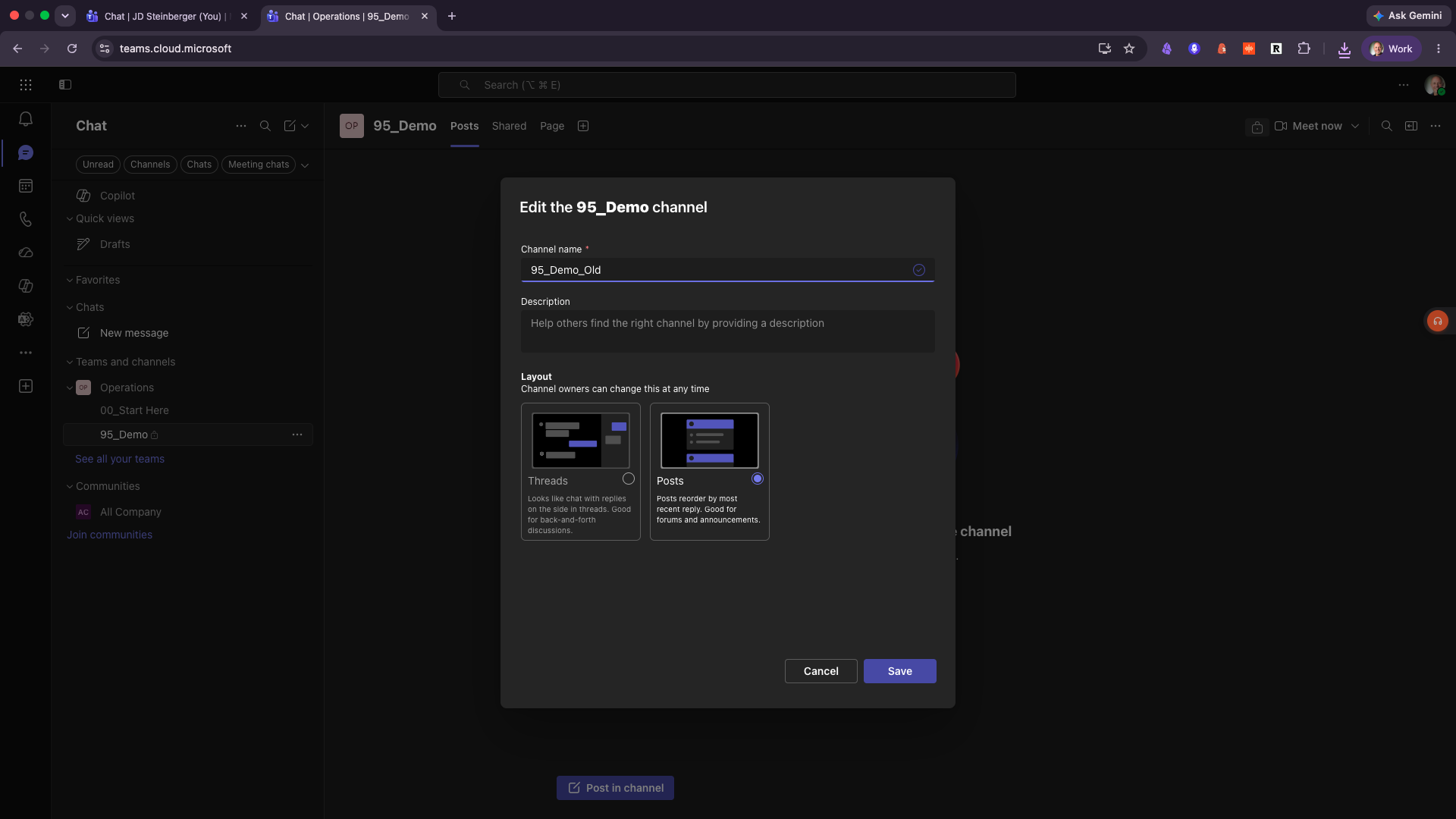
No. Once you click Create, a channel’s type — Standard, Private, or Shared — is locked. Open Edit and there’s no type field at all. That’s because the type isn’t a setting, it’s a different container: a Standard channel lives in the team’s shared SharePoint site, a Private channel gets its own separate site, and a Shared channel adds external access on top. You can’t flip between them because they’re built on different storage. The fix: rename the mis-typed channel to …OLD, create a fresh channel with the right type and the real name, move the files over in SharePoint, and delete the empty one. Thirty seconds, no downtime.
What happens when you delete a channel and try to reuse the name?
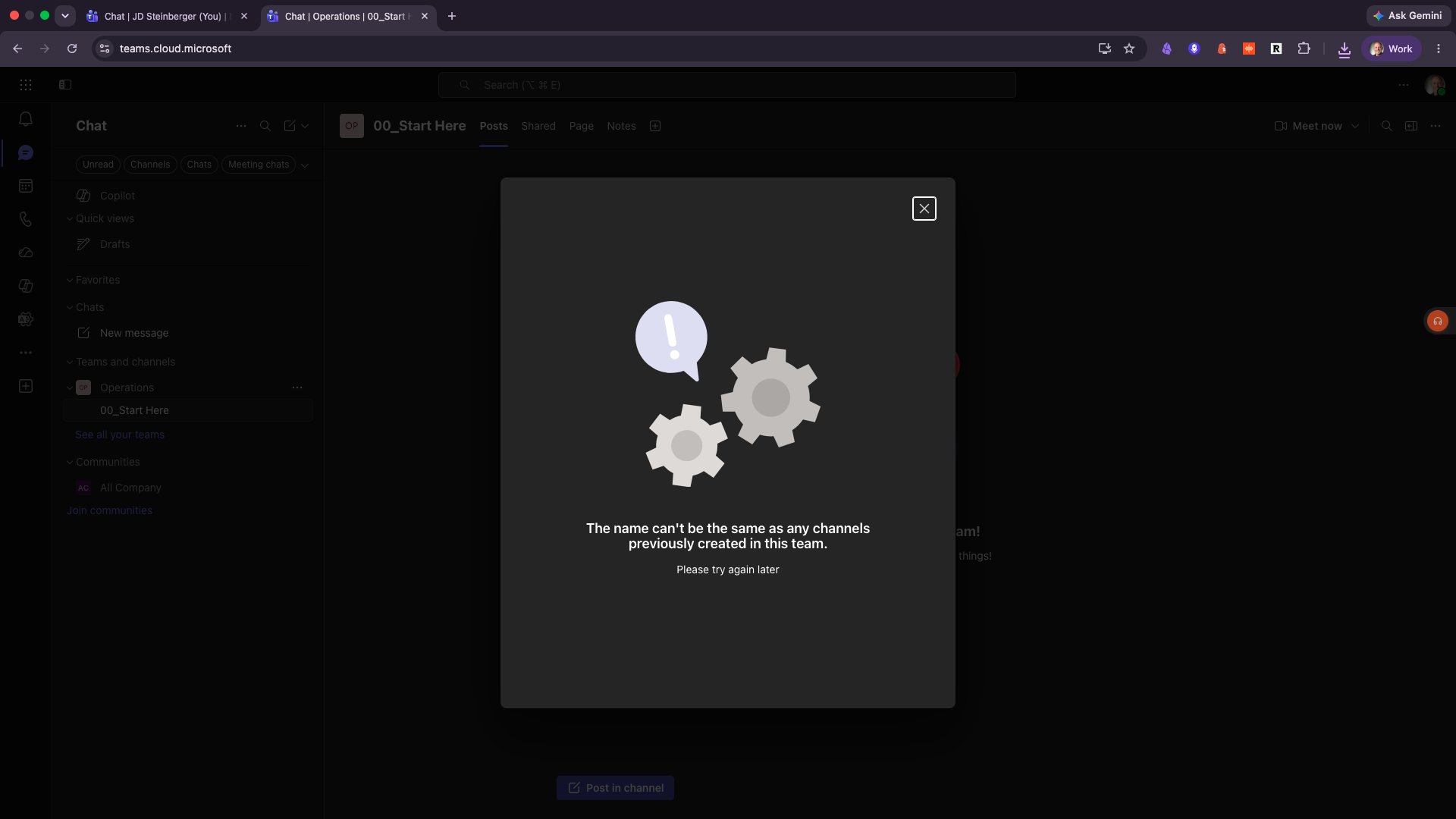
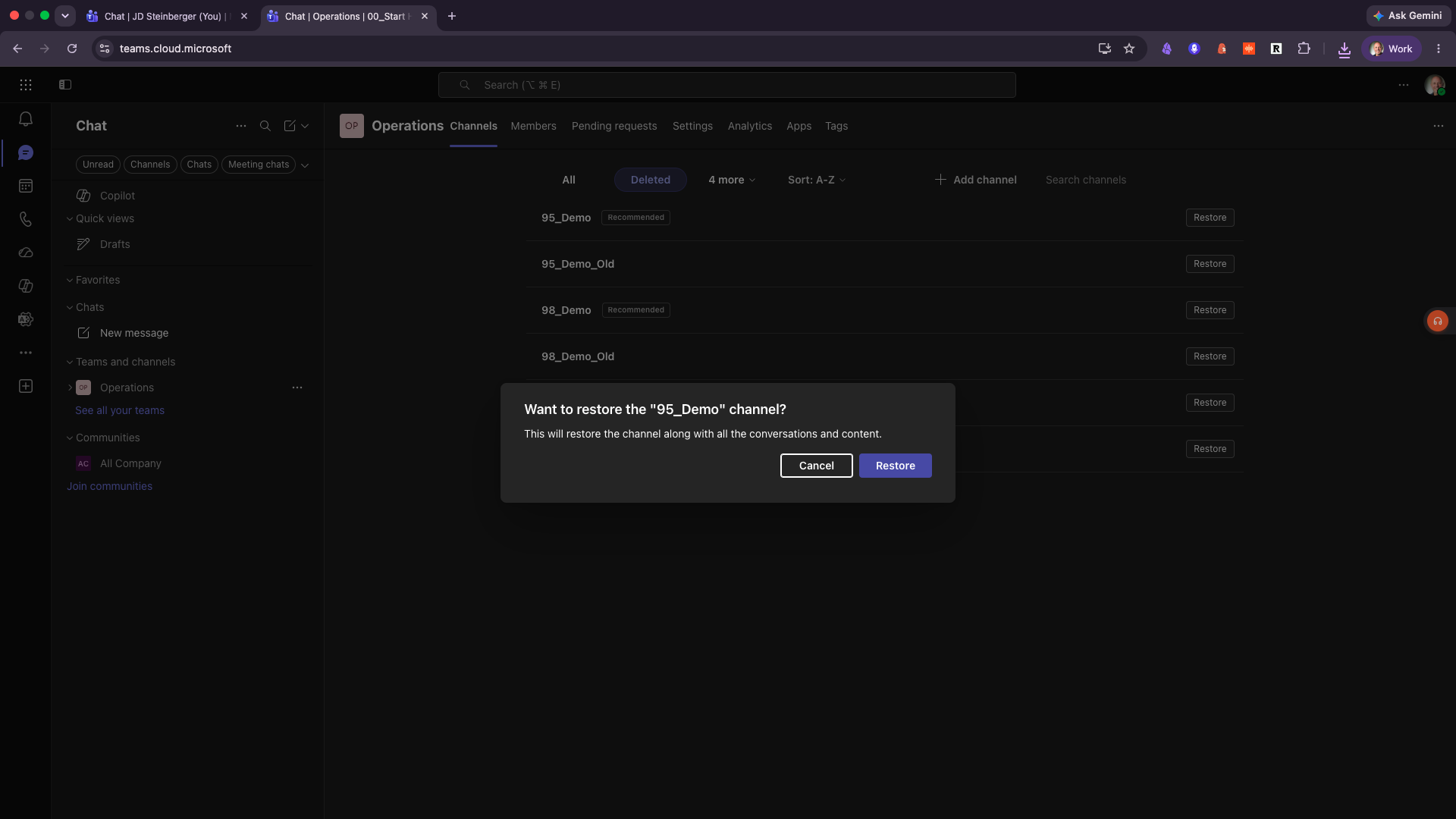
Microsoft won’t let you — for about 30 days — and the error stops people cold: “The name can’t be the same as any channels previously created in this team.” People read that and rebuild the entire team. Don’t. The channel isn’t gone; it’s sitting in a 30-day recycle bin, and the name is reserved so you can restore it. The fix: go to Manage team → Channels → Deleted → Restore. It comes back with all its content. Deleted isn’t gone — restore it, don’t recreate it.
Do you actually need a private channel?
Usually not. A Standard channel inside a Private team is already only visible to that team’s members — so it’s private enough for almost everything. You only need a Private-type channel when a subset of the team has to be walled off from the rest. The real-world case is HR: 70_Benefits and Payroll and 80_Employee Information are Private-type so only HR sees them, even inside the HR team.
Microsoft Teams for Construction vs. the Alternatives
Teams isn’t the only way to run a construction back office. Here’s how a structured Microsoft Teams for construction setup compares to the common alternatives, honestly.
| Criteria | Structured Teams | One giant team, no system | Procore / $40k platform | Email + spreadsheets |
|---|---|---|---|---|
| Fits how a crew works | High — numbered, repeatable | Low — junk drawer | Medium — built for firms 10x your size | Low |
| Learning curve for a new hire | Minutes (shape never changes) | Steep (nothing’s where you’d guess) | Weeks | None, but nothing’s shared |
| Already in your stack | Yes (Microsoft 365) | Yes | No — separate purchase | Yes |
| Avoids the permanence traps | Yes, if built right | No — trips every one | N/A | N/A |
| Cost | Included with M365 | Included, but costs you time | ~$40,000/yr | “Free,” paid in lost hours |
Procore and the big platforms are genuinely good — they’re just built and priced for firms ten times the size of a small GC, and most contractors use a fraction of them. Spreadsheets are free until you count the hours spent chasing who has the current version. A structured Teams setup wins for small-to-mid contractors because it’s already paid for in your Microsoft 365 license — the only thing missing is the structure, and that’s what this guide is.
Frequently Asked Questions
Q: Is Microsoft Teams free for a construction company?
A: It’s included in most Microsoft 365 Business plans, so if you already have Microsoft 365 for email, you already have Teams — no extra license needed.
Q: Is a Microsoft Teams for construction setup different from a regular Teams setup?
A: The software is identical — what’s different is the structure. A Microsoft Teams for construction setup uses one team per department and a numbered channel system, so it holds up across dozens of jobs instead of becoming the junk drawer a generic setup turns into.
Q: How many channels should a construction team have?
A: As many as the work needs, but numbered on a band system so they stay ordered. Most department teams land between 6 and 10 channels; HR runs more because of the private ones.
Q: Can I rename the first channel in Teams later?
A: You can rename it, but you can never delete or archive it — so name it deliberately at creation. Make it your 00_Start Here front door.
Q: What’s the difference between a private team and a private channel?
A: A Private team controls who gets into the whole room. A Private-type channel walls off a subset from the rest of the team. In a Private team, Standard channels are already private to members — you only need Private channels for something like HR.
Q: I deleted a channel by accident — is the data gone?
A: No. It’s in a 30-day recycle bin. Go to Manage team → Channels → Deleted → Restore to bring it back with all its content.
Getting Started
Building your first department in Microsoft Teams for construction takes about twenty minutes once you know the shape: one team, a permanent front door, two owners, numbered channels, Posts layout, and a healthy respect for the two settings that lock on Create.
The fastest way to do it right is to copy a structure that already works instead of reverse-engineering one. I put the entire setup — all six department teams and every channel, numbered — into a free blueprint you can build straight from.
Grab the free department blueprint at jobsiteautomations.com/blueprint, build one department this week, and you’ll never lose a drawing in a junk-drawer channel again. For the full walkthrough, watch the Ep2 build-along on YouTube — the exact step-by-step in real time. For platform reference, Microsoft’s own Teams help center and its guide to channels cover the basics.
By JD Steinberger — 30+ years building physical and digital things, now automating the back office of construction at Job Site Automations. Published 2026-08-01.